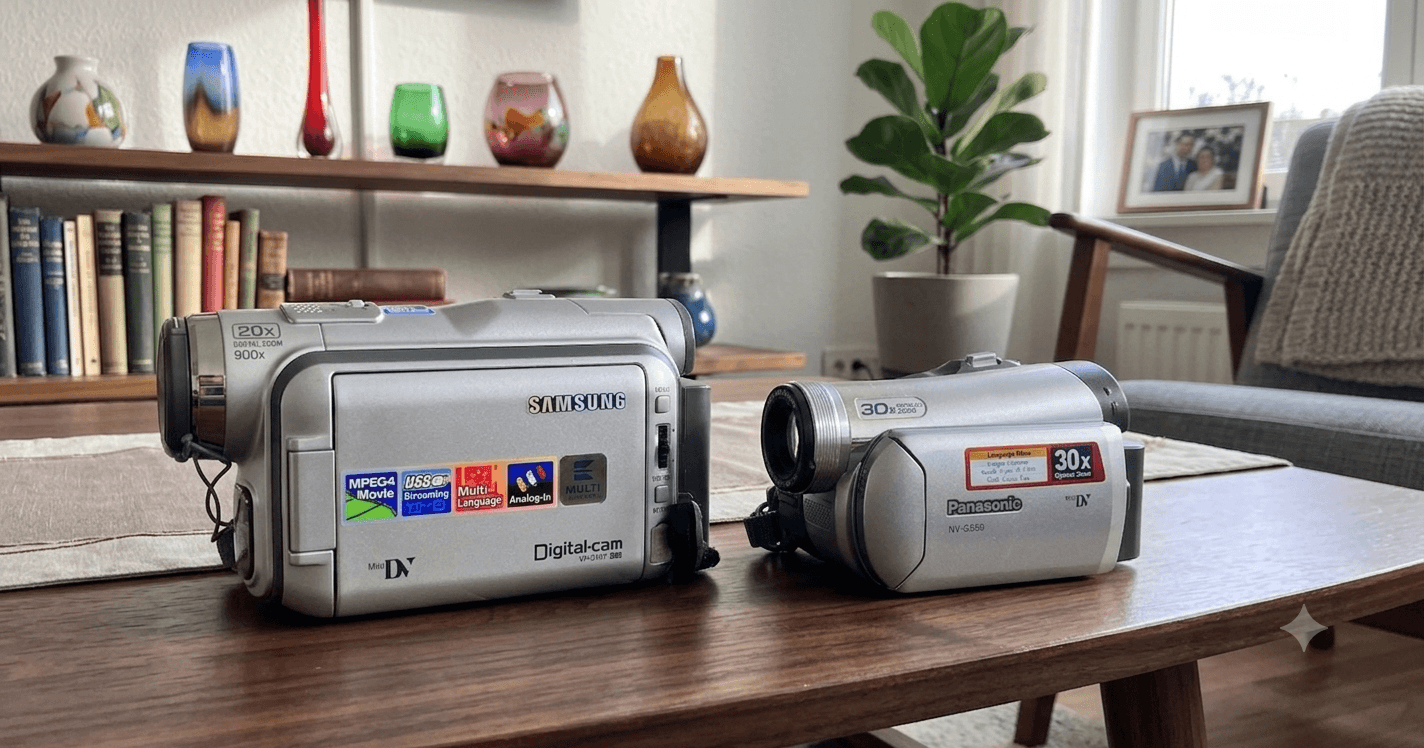
If you’ve a shoebox of small camcorder cassettes — MiniDV, or the slightly larger Digital8 — the good news is these are the easiest tapes you’ll ever archive, provided you do the one thing that matters and avoid the one mistake that catches people out. The thing that matters: these tapes are already digital. The recording is a digital data stream, so the job isn’t to “capture” them the way you’d wrestle a wobbly VHS signal — it’s to copy the data off, bit-for-bit. Knowing how to transfer MiniDV to computer the right way is mostly about resisting the urge to re-record it through a capture card. And if your box also holds analogue Video8 or Hi8 tapes, stay with me — a Digital8 camcorder is the neat trick for those too.
One method for the whole DV family
Although this guide is framed around MiniDV and Digital8, the same approach covers the entire family of DV tape formats — they’re all the same kind of DV data on tape, and they all transfer the same way:
- MiniDV — the common consumer and prosumer cassette.
- Digital8 — DV recorded on the 8mm shell (with a useful bonus trick, below).
- DV and DVCAM — the standard format and Sony’s professional variant.
- DVCPRO and DVCPRO50 — Panasonic’s professional variants.
If it recorded DV to tape, the bit-for-bit FireWire copy described below is the method — which is part of why a tool like DVRescue handles all of them. The one cousin that’s different is HDV — high-definition video on MiniDV cassettes — which is MPEG-2 rather than DV; it still travels over FireWire, but with different tooling.
Why you copy a DV tape, rather than capture it
DV is written straight to tape as a digital stream when the camera shoots. Yes, DV is a lossy format, but that loss was baked in at the moment of filming, when the camcorder’s encoder compressed the picture in real time. That’s done; it’s part of the recording now. What you do after can be lossless: moving the DV data from the tape into your computer over a digital connection is a bit-perfect copy, with no further generation loss. The data on the tape arrives unchanged.
This is why running a MiniDV camcorder’s picture out through an analogue capture card is the wrong move: you’d take an already-digital recording, convert it back to analogue, and re-digitise it — adding loss for no reason, usually with stutter and interlacing artefacts on top. The same goes for “improving” the file by re-encoding it to a lossless codec or to MPEG-2: a lossless codec just makes the file far larger without adding a scrap of quality, and MPEG-2 makes it worse. The recording is already DV. Keep it as DV (a DV-AVI file) and you have the best copy the tape can give you.
FireWire — and checking the camcorder actually has it
The bit-perfect copy happens over FireWire (the same connection you’ll see called IEEE-1394 or i.LINK). Plug the camcorder in and software pulls the DV stream straight off the tape.
Before you buy a camcorder or deck, confirm it has a FireWire port. Some MiniDV models shipped with USB only — and that USB was for transferring still photos or a low-quality webcam-style stream, not a proper DV transfer — so a USB-only model is best avoided. Plenty of models have both; the FireWire socket is the one you want.
The wrinkle in 2026 is the computer end: almost no modern machine has a FireWire port, and it’s getting harder, not easier — the latest macOS has dropped FireWire support entirely, and Apple’s Thunderbolt-to-FireWire adapter is now scarce. Your realistic routes:
- A desktop with a spare slot — add a PCIe FireWire card. The most dependable option.
- An older laptop with an ExpressCard or PCMCIA slot — FireWire cards for those still turn up.
- A Mac — a Thunderbolt-to-FireWire adapter (chained through a Thunderbolt 2-to-3 adapter on newer Macs), for as long as that path holds up.
- Linux — the durable route. A modern Linux machine handles FireWire DV capture cleanly (it’s what DVRescue and dvgrab run on best), and it isn’t subject to a vendor pulling FireWire support out from under you. If the Mac and Windows situation is closing in, Linux is the way through.
One firm warning, because it’s the most common wasted purchase: the cheap USB-to-FireWire cables don’t work — they aren’t real FireWire and won’t carry a DV stream. Don’t buy one.
How to transfer MiniDV to computer — the tools worth using
The standout tool here is DVRescue — free, open-source software made by and for archivists (led by MIPoPS, developed by MediaArea) specifically to get DV tapes into preservation files. What sets it apart is automatic error recovery: it talks to your deck over FireWire and, when it spots dropped or errored frames in the capture, it rewinds and re-captures those frames by itself — as many passes as you allow. For a tape that’s a little dirty, worn or marginal, that’s the difference between a clean transfer and a patchy one, with no babysitting. It handles the whole DV family listed above.
vrecord — from AMIA (the Association of Moving Image Archivists), the tool I pointed to for the SDI capture chain in the capture-card guide — also captures DV and works hand-in-glove with DVRescue, with live scopes and audio metering if you want to watch the signal as it comes in. On macOS or Linux it’s a strong front end.
You’ll also see the older, simpler options named, so it’s worth knowing what they are. WinDV is a tiny, free Windows program that does one thing — copies the DV stream to an AVI and reports any dropped frames; perfectly fine for clean tapes. Scenalyzer is an older Windows tool that lets you review and split footage as you capture. And VirtualDub isn’t a capture tool at all — it’s a long-standing free Windows editor you might use afterwards to trim or process the captured AVI. You don’t need it for the transfer itself, and DVRescue or vrecord cover the modern workflow end to end.
One piece of old advice to ignore: you’ll read that you must shut down antivirus and capture only to a dedicated internal drive. That’s a relic of doing this on underpowered machines with slow disks. A current computer with an SSD swallows DV’s ~25 Mbit/s stream without breaking a sweat, so you can skip the ritual — just don’t capture to a nearly-full or sluggish drive and you’ll be fine.
Split into scenes — and label them. DV carries the camera’s start/stop flags and timecode, so good software (DVRescue included) can break a tape into one file per recording, by date. Take that option rather than ingesting one enormous AVI. Then do future-you a favour and rename each scene file with a short suffix saying what’s in it — 1999-03-beach, 2000-04-nan-80th-birthday — it turns an unsearchable pile of timestamps into something you can actually find things in years later. For the record, the audio comes across as PCM — 48 kHz 16-bit stereo, or 32 kHz 12-bit in the four-channel mode — so there’s nothing extra to do for sound.
Digital8’s trick: it digitises your Video8 and Hi8 tapes too
This is worth knowing even if you came here only for MiniDV, because it’s the easiest route for analogue 8mm. A Digital8 camcorder does two jobs: the bit-perfect copy of your Digital8 tapes, exactly as above — and, on most models, it will also play back the older analogue Video8 and Hi8 tapes and output them over FireWire as DV. So a single Digital8 camcorder is often the simplest, lowest-cost way to digitise a mixed box of 8mm tapes through one device and one cable.
The one caveat: when a Digital8 camcorder plays an analogue Video8 or Hi8 tape, it’s converting that analogue signal to DV on the fly — so that transfer is a genuine capture, with a small amount of loss, not a bit-perfect copy. For most family footage it’s perfectly good and well worth the convenience. If a particular 8mm tape really matters and you want the highest-fidelity result, the RF route with vhs-decode is the alternative worth knowing about. For everything else, the Digital8-over-FireWire path is the pragmatic call.
The hardware reality in 2026
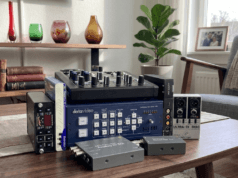
There’s nothing new to buy here — it’s all second-hand now. Modern HD and 4K camcorders don’t read DV tapes at all, so you’ll need a used MiniDV or Digital8 camcorder, or a dedicated DV deck, with a working FireWire port (see the buying check above). Buy something lightly used from a known brand, test it, and be ready for the occasional dud — it’s the price of admission to a format the shops left behind.
One format note for completeness: HDV (high-def on MiniDV cassettes) is MPEG-2 rather than DV, so although it transfers over the same FireWire connection, DVRescue doesn’t handle it — dvgrab or HDV-capable capture software is the tool for those tapes. For the deeper technical detail across the whole DV family, the community’s Digital Tape Guide is a thorough reference worth bookmarking.
What’s next
Digital tapes are the simple case precisely because the hard part — getting a clean digital recording — was done in the camera. Analogue tapes are a different and more involved job: if you’ve VHS or raw 8mm in the same box, start with the analog capture path or, for the best archival result, the RF capture route. And once everything’s digitised, the job shifts to keeping it — which is what designing a family archive that survives you is for.