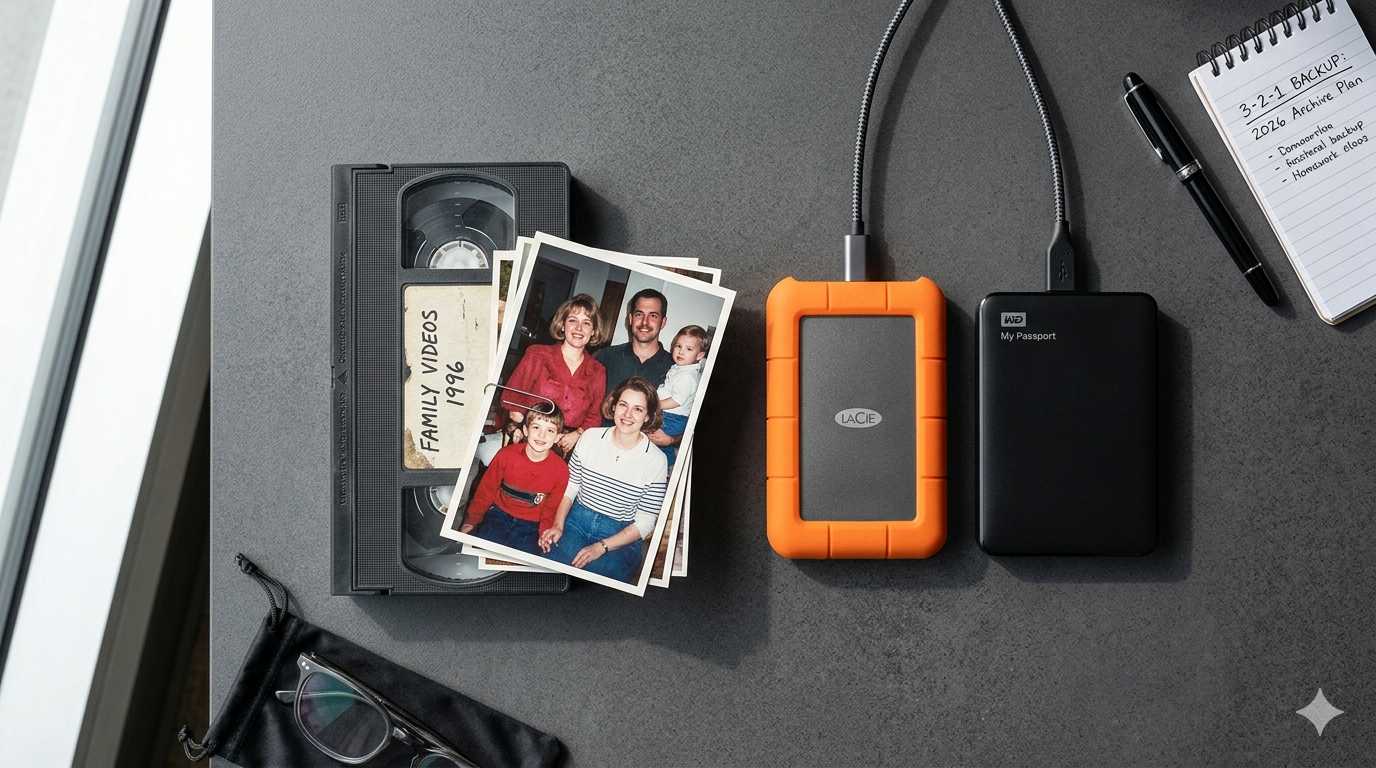
Walk into the spare room of someone who has started preserving the family’s old media, and you tend to find the same scene. A laptop on a desk. An external hard drive next to it, often the same one used for whatever capture or scanning has been done so far. A box of cassettes on a shelf nearby. Everything that matters to a family — births, weddings, funerals, the last footage of a grandparent who is no longer alive to ask about — lives on one drive, in one room, in one building, under one roof.
In the thirty or so years most of us have been online, the question of backups pertaining to family memorabilia has almost never come up. Not in the analog-video threads about which codec to choose or which capture card to buy, not in the photography-scanning groups, not in the audio-restoration forums, not in any of the document-archiving conversations I’ve crossed paths with. The bitrate-per-pixel argument is loud. The redundancy argument is barely audible. And the preservation argument — which is a different argument again — is rarer still.
This article is Part I of two; the focus here is backups. Part II covers preservation.
What follows is the harder set of questions I keep coming back to when building a family archive that lasts: how many copies, on what media, where stored, and handed off to whom.
Nothing digital lasts on its own
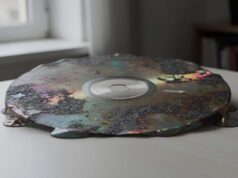
Most people assume digital is the durable option and that tape, paper and film are the antiquated ones digital replaces. In practice it’s the reverse. Digital storage left alone is on a clock measured in years — a USB stick in a drawer for twenty years is more likely to have failed than be readable, and a hard drive in a cupboard is typically worse. Tape, paper and film kept in reasonable conditions outlast it: printed photographs by a century, motion-picture film by fifty to a hundred years, videotape on a shelf by thirty to fifty. The only digital strategy that actually works long-term is the maintained one, the principle behind the NDSA Levels of Digital Preservation, and the realistic family archive doesn’t live entirely in digital anyway — the originals don’t have to be discarded once captured. Part II goes into the durability story for each medium in detail, along with the role that keeping originals plays alongside the digital archive.
Could you just “refresh” the drives instead? The option exists, mainly to show why it isn’t the answer. Because a drive decays from sitting unused, you can in principle keep it alive by powering it up on a schedule and forcing every byte to be read and rewritten, so its error-correction restores the data before it fades — by copying everything off and back, or with a tool like DiskFresh on Windows or a non-destructive badblocks pass on Linux. In practice it is fiddly and easy to get wrong: you have to remember to do it, on every drive, forever — and flash media only truly refreshes when the data is rewritten rather than merely read, so a quick “open a few files” check gives false reassurance. It is shown here as exactly that: an example of why we do not recommend trusting a drawer full of drives. The maintained approach above — several live copies, carried forward onto fresh hardware on a schedule — does the same job without the babysitting.
A family archive can get big
A challenging part of this problem is that depending on how much source material you have and how you choose to archive it, your archive can be quite big. So big in fact that it makes cloud backups prohibitive and your only real solutions become self made backups, or limiting the media in the backup to what you think is most important.
To put rough numbers on it: a 60-minute VHS tape captured at the RF layer with vhs-decode runs to roughly 100 to 130 GB per hour, compressed losslessly. A standard analog capture in FFV1 from the deck’s composite output is closer to 50 GB per tape. As a working example, my own home-video archive currently sits at 13 terabytes without snapshots, and the photo archive next to it is another 3.1 terabytes — a few hundred tapes at archive quality and a few decades of digital and scanned photos adds up faster than the per-item numbers suggest. Audio cassettes captured to FLAC are smaller individually but stack up over the boxes. A serious family archive is comfortably tens of terabytes once everything is in, and the snapshot history that protects against accidental edits sits on top of that working size.
The implication for backup strategy is direct. Cloud backup is widely marketed as the cheap answer, and it is cheap at small scale… The assumption stops holding at family-archive scale and on archives that don’t live on an always-on machine. The flat-fee consumer market has thinned out in recent years; what remains is mostly per-terabyte transactional object storage (Backblaze B2, Wasabi, AWS S3, Cloudflare R2) or deep-archive cold storage (AWS Glacier Deep, Azure Archive), and none of those fits comfortably at multi-terabyte scale. Egress costs, restoration times — CrashPlan was notorious for restorations that took weeks on relatively modest backups — and operational complexity all rise sharply once the archive is sizable. AWS Glacier Deep in particular looks cheap on the surface and is a poor fit for a home user; the tooling is developer-grade, the retrieval flow is byzantine, and even deleting your data is non-trivial. Its companion, Your off-site backup: the options, and what it really costs, works through those off-site choices in detail; the short version for this article is that cloud belongs somewhere in the picture but rarely as the only off-site copy and never as the only copy.
On a forward-looking note, the current moment for storage is unusually expensive by recent standards — HDD per-terabyte pricing has been static or rising for awhile now rather than continuing its long-term downward slide, and the consumer optical-disc supply is shrinking. The longer trend has been downward for forty years, though, and there’s no reason to assume the current bump is permanent. Ten years from now the same archive will probably sit on smaller, cheaper hardware than it does today. That isn’t an argument for waiting — the originals are aging in the meantime — but it is an argument for sizing today’s hardware to today’s archive rather than buying ahead of what you might one day need, and future copies will arguably be cheaper to store.
Backups vs Preservation
Backups are about the day to day operational redundancy, preservation is about long term archival storage. One is not much use without the other.
The tools that solve each are different. Backup handles event-driven failures — a drive dies, a laptop is stolen, a folder is overwritten by accident, the building floods. The fix is more copies, in more places, on different media. Preservation handles slow-moving ones — the storage medium reaching end of life, the file format becoming unreadable, the cloud account closing when the bill stops being paid, the next custodian opening the archive and having no idea what’s in it. The fix there is different: durable media, open file formats, a readable index, a succession plan.
The two halves go together: doing one well and ignoring the other still loses the archive, just on a different timeline.
The entry point: The 3-2-1 principle
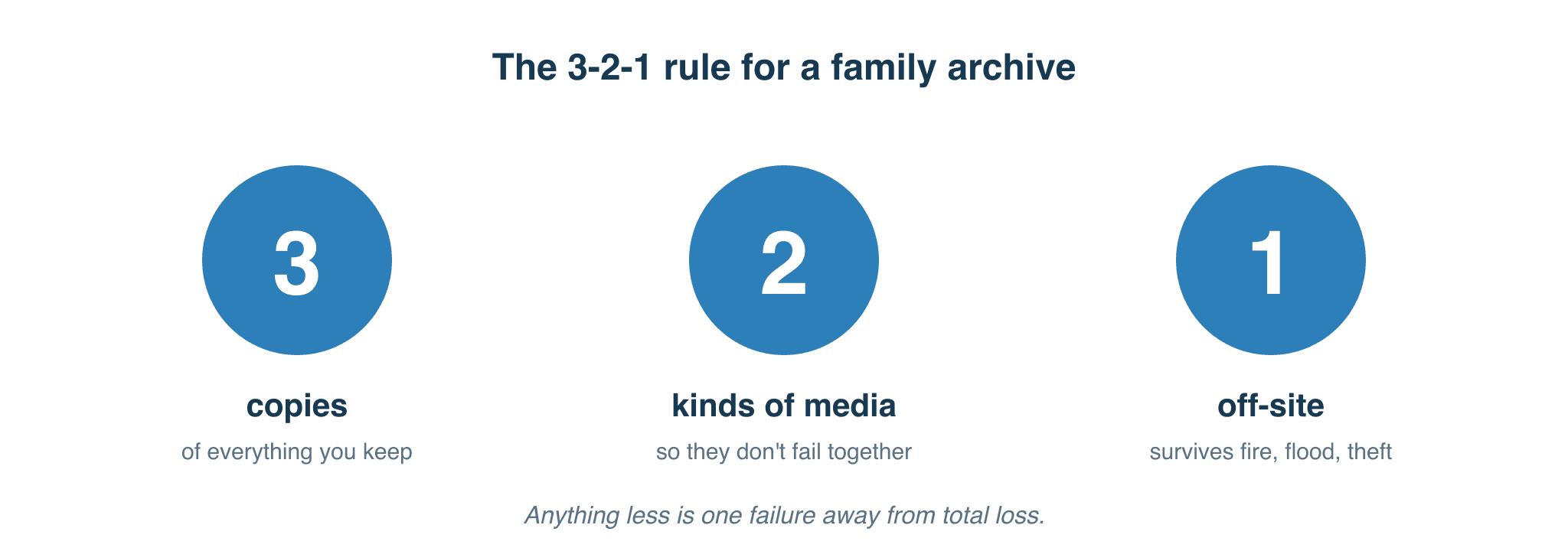
The starting discipline I’d recommend isn’t what professional IT shops actually use — enterprise data protection is much more elaborate than what follows, though it’s also more expensive. What I’d reach for at family-archive scale is the consumer-grade rule that the digital-photography world has been running with for years: 3-2-1. It’s basic by IT standards, but it covers the core failure modes — which is a meaningful step up from where most family archives currently sit: one drive in one room. It isn’t a hobbyist invention either. The Library of Congress’s own personal digital archiving guidance gives families the same core advice, to keep multiple copies stored in more than one place.
Three copies. Of every file you care about. Not two — three (this includes your original). Two-copy failures happen more often than people expect. A drive fails, you go to copy from the backup to a replacement, and the backup fails during the copy because it was the same model from the same batch. Or you spill a glass of water on the desk where both drives sit. Two copies in the same room is one event away from zero.
Two different storage media. Failure modes correlate within a media type. All consumer hard drives of the same model from the same batch tend to fail in a narrow window. Bit-rot affects optical media on the same shelf at the same rate. Flash cells in SSDs all leak at roughly the same rate when unpowered, and the JEDEC JESD218 standard only guarantees a powered-off consumer drive around a year of data retention near the end of its write life. Three copies on identical drives bought at the same time is closer to one copy than three.
One off-site. Fire, flood, theft, lightning strike. Any of these destroys everything in a single building. The off-site copy is the one that survives the event you can’t plan for.
In summary, for a family-scale archive, the recipe I’d follow is uncomplicated. The working drive on your desk is copy one. A second drive — different brand, different batch — sitting offline in a cupboard is copy two. The off-site copy is either a cloud-storage account (Backblaze B2, Wasabi, Glacier Deep Archive) or a drive at a sibling’s house refreshed (or swapped) on an appropriate schedule. The right pick is the one you’ll actually keep up with.
Anything less is one disk failure away from total loss.
| Pros | Cons |
|---|---|
| Recovers from catastrophic loss of your dwelling — fire, flood, theft | Items added since the last off-site sync are at risk, including any originals you’ve already moved on |
| Recovers from catastrophic loss of your media — drive failure, disc rot, controller failure | Doesn’t catch human error or silent corruption — accidental deletions, overwrites, bit-rot and controller errors all propagate to every backup copy in the chain |
| Conceptually simple — three copies, two media, one off-site, easy to explain to whoever inherits the archive | Manual time cost to keep the off-site copy current, depending on the path you’ve chosen |
| Lower upfront complexity | Cloud as the off-site copy can become cost-prohibitive for larger size archives (see A family archive can get big above) |
| Simpler off-site requirements | Cloud backups stop working when the credit-card auto-payment fails or the account holder dies, with no grace period beyond the provider’s auto-delete window |
| Failures naturally surface during the manual cycle | |
| Easier to diagnose and recover from |
When the collection outgrows 3-2-1
3-2-1 works when the collection is small enough to maintain by hand. Three copies of fifty gigabytes is plausible. Three copies of fifty terabytes — which is roughly what an active family archive runs to once the tapes, the scanned photos, the audio cassettes and the boxes of slides are all in — is a different conversation. Copying everything twice on a schedule becomes a weekend job, then a monthly job, then a job you keep meaning to do. The moment you skip a cycle, new files live on only one drive again. A few months in you don’t know which drive holds which version of which file, and the archive has quietly drifted back to one copy.
The process of family archiving at larger scales is also slow work. Capturing a couple of hundred tapes carefully or 10000 slides or 3000 paper photographs takes years even for someone actively doing it; for most people it takes decades, and many never finish. The redundancy architecture is ideally one that can run unattended.
The approach I’d reach for with any larger or growing archive rests on three layers: protect the data at the source, take regular automatic snapshots of it, and replicate those snapshots off-site. It takes a bit of money and may take some skill or time, but it’s worth it in the long run.
Protect at the source. The working storage is itself redundant — two or more drives configured so that any single drive failure doesn’t lose data. The technical term is RAID; most NAS units handle this for you out of the box. This isn’t a backup — backups are the next layer — but it raises the floor of the working layer. Everything else builds on top of it. (I’ve written more about why RAID isn’t a backup but sometimes you have no choice elsewhere; the short version is that RAID survives hardware failure but doesn’t protect against accidental deletion, corrupting writes, ransomware, or silent corruption.)
Snapshot the storage. A snapshot is an automatic point-in-time checkpoint of all the data on the storage, taken on a schedule — typically hourly for the recent past, daily for the recent weeks, monthly for the recent year. Snapshots are space-efficient (only the differences between snapshots take space), and they protect against the failure modes a RAID array alone can’t catch: accidental deletion, corrupting writes, ransomware that encrypts your files, the moment you overwrite a good file with a worse one. The better self-correcting file systems also check each block of data when it’s read and surface silent corruption when something has quietly gone bad. Snapshot support is available on the better consumer NAS units as well as on DIY units, and the more expensive enterprise storage solutions.
Replicate off-site. This snapshot layer can then be synced automatically to another machine in another location over the internet — typically a second NAS at a sibling’s house, a friend with the same reciprocal need, or in cloud storage that supports the same snapshot pattern. Setting this up is a bit of extra effort (a second NAS, the bandwidth to seed the first copy, an evening of configuration), but well worth it. The ongoing operational cost is essentially zero, and the system tells you when something goes wrong. The off-site copy is what survives the events you can’t plan for: the building burning down, a lightning strike that takes out everything plugged into a power outlet, a flood, or the theft of the entire setup.
The failure modes this architecture catches are the ones a copy-based backup chain doesn’t help with: human error and silent corruption. The first is human error: deleting the wrong file, overwriting a good version with a worse one, dragging something to the wrong folder and not realising for months. A basic backup cheerfully propagates those mistakes to every drive in the chain. Snapshots preserve the last good version on a timeline that goes back further than your memory of when something went wrong.
The second is silent corruption — a file goes bad on disk through a bit-flip (think solar storm), a controller error, or an ageing drive that mostly still works. A basic backup replicates the bad version to every drive in the chain; you don’t notice until you go to use the file years later and find it doesn’t open. The self-correcting file system catches the corruption before it spreads.
| Pros | Cons |
|---|---|
| Recovers from catastrophic loss of your dwelling | Higher upfront complexity |
| Recovers from catastrophic loss of your media | Off-site replication needs a destination machine and the bandwidth to seed the first copy |
| Catches human error | Monitoring and alerting needs setting up so failures don’t go unnoticed |
| Catches silent corruption | Diagnosing problems is harder once the system is more sophisticated |
| Runs unattended once set up | |
| Fully automated |
The fork in the road is real. 3-2-1 is fine when the collection is small enough to maintain by hand, or when the technical skill or budget to set up advanced storage isn’t available. Most family archives that are still in the early stages or only have a small number of items fit that case. For an active archivist working through hundreds of items across multiple media types, though — and for anyone who wants the silent-corruption case covered — the snapshot-and-replicate model is what I’d build toward.
Where this lands
That’s the backup half of the picture. Copy discipline at small scale, snapshot-and-replicate when the collection outgrows hand-copying, and a clear view of what each architecture catches and what it doesn’t. Backups protect the work in progress — the years of capture and scan effort, the originals before they’re packed away, the ongoing churn of new material being added — against the failures that happen on a calendar you can’t predict.
What this article hasn’t covered is the longer story. Which medium the data sits on for the next twenty years. How the archive stays findable when there’s nobody around to explain it. What happens to the cloud login when the person who pays the bill is no longer there. Whether the file format itself is still readable in 2055. That’s preservation, and it’s covered in Part II. The choices there are slower-moving — less about recovery, more about durability — and they sit alongside the backup discipline rather than replacing it. The goal at the end of both halves is the same.
What’s next
The natural next read is Part II: Preservation, which covers medium choices, file-format longevity, the findability of an archive that has to be navigable without a guide, and the succession plan for the person who inherits the whole thing. If you want the less technical companion to either part — the why behind everything above — see The important role of being the family archivist. If you’re capturing at the RF layer rather than from a deck’s composite output, How vhs-decode actually works covers the underlying argument for why the RF file is the preservation copy, and Capture hardware in 2026 covers choosing the device that generates the files this article is asking you to protect. For definitions of any of the codec, container or storage terminology above, the glossary of terms is the right place.